
All content on this website is provided solely for educational and demonstration purposes. Any software downloaded from this site is not intended for commercial use or broad distribution. You are solely responsible for ensuring compliance with all applicable license agreements and laws.
If you appreciate a particular program, we strongly encourage you to purchase the official version and support its developers. They invest significant time and effort into creating these tools and, unlike many others, cannot work for free — they need to earn a living. Consider leaving a comment, sharing, or otherwise supporting those who work hard for you.
Confused about where to download Windows 11 or Windows 10? In 2026, here’s the legitimate, step-by-step path to install a genuine copy safely — no viruses, no pirated ISOs.
The Problem Nobody Talks About Directly
You sit down at your laptop, the screen glitches, and suddenly you’re searching “where can I download Windows 11 for free.” Same thing for Windows 10. The search results flood your screen with sketchy sites promising “cracked ISO files” and “free license keys.” One click could hand your identity to a malware ring.
Here’s the honest reality most landing pages won’t tell you: downloading the actual Windows installation media is free and legal in 2026. The operating system image itself comes straight from Microsoft. What costs money is the activation license, and even that has legal routes.
On this site, you’ll find clean, verified Windows 10 and Windows 11 ISO images — the exact same files Microsoft distributes — plus the tools and instructions to burn them onto a bootable USB. Head over to our Download Center to see everything we’ve catalogued and verified.
Let’s walk through everything that matters, from picking the right edition to verifying a file is genuinely clean before you install it.
Download the media for free. Install it. License it the right way. That’s the entire loop — and it’s all doable without gambling on a cracked copy.
Why This Guide Exists (And Why It’s Different)
Millions of people type “Can I download Windows 11 if I can’t find it anywhere?” every single day. The reason they can’t find it is rarely that the file doesn’t exist — it’s that they’ve been redirected through confusing menus, expired links, and third-party sites dressed up like official Microsoft pages.
This post cuts through the noise. We’ll cover:
- The actual legal distinction between free media and paid activation
- Two official download methods for each OS
- How to match your edition and architecture before downloading
- The SHA-256 verification step that separates clean files from infected ones
- A full FAQ answering the questions people actually type into AI chatbots and search bars
External link worth bookmarking: The authoritative source for all of this is Microsoft itself. Bookmark the official Windows 11 Download page and the official Windows 10 Download page so you always know where the real files originate.
Windows 11 vs. Windows 10: Which One Belongs on Your Machine?
Choosing an OS isn’t about hype — it’s about matching the software to the hardware you’re running. Here’s a clear comparison to help you land on the right download.
| Criteria | Windows 11 (25H2) | Windows 10 (22H2) |
|---|---|---|
| Latest build (2026) | Version 25H2, build 26200 | Version 22H2, build 19045 (final release) |
| Minimum TPM requirement | TPM 2.0 required | TPM 2.0 recommended, not mandatory |
| Minimum RAM | 4 GB | 2 GB (64-bit) |
| Minimum storage | 64 GB | 32 GB |
| Modern AI features (Copilot, NPU) | Yes, fully supported | No native AI acceleration |
| Support status in 2026 | Actively updated | End of general support: October 14, 2025 |
| Best suited for | Modern PCs, gaming, AI workloads | Legacy hardware, older machines, low specs |
Windows 11 is the future-facing choice; Windows 10 remains fully usable for legacy hardware — but understand the support trade-off before you install it.
The Core Truth: Free Media ≠ Free License
This single idea trips up nearly everyone, so let’s nail it early and repeat it where it matters.
When you download Windows, you are obtaining installation media. That media is free. Microsoft has published it, at no charge, for years. Downloading it does not give you a right to run an activated copy.
To actually unlock every feature (no watermark, activation stamp, and full personalization), you need a valid license or digital entitlement. Here are the legitimate ways to get one:
- A retail product key purchased through an authorized reseller
- A digital license bundled when you buy a new PC
- In-place activation — if your PC already ran a licensed copy of the same edition, reinstalling that edition often reactivates automatically using a firmware-bundled key
- ESU enrollment for Windows 10 devices that need continued security patches through October 2027
For the specifics on Windows 10’s post-support situation: Check Microsoft’s Windows 10 End-of-Support page.
How to Download Windows 11 (Step-by-Step, 2026)
There are three official methods to install Windows 11. Pick the one that matches your situation.
Method 1: Windows 11 Installation Assistant (Easiest Upgrade)
This is the fastest route if you’re already running Windows 10, version 2004 or later, and your PC qualifies for the upgrade.
- Confirm your device meets the Windows 11 system requirements
- Download the Installation Assistant from Microsoft’s page
- Run it as an administrator and accept the license terms
- Click Accept and Install, then let the PC restart several times
<u>Make sure your PC stays powered on during installation. Interrupting it can leave the setup in a broken state.</u>
Method 2: Media Creation Tool (For Bootable USB)
Use this when you need a clean install on a different PC or want a bootable USB drive.
- Download the Windows 11 Media Creation Tool
- Run it as an administrator, then tick Create installation media for another PC
- Pick your language, edition, and architecture (64-bit)
- Choose USB flash drive (8 GB minimum, will be erased) or ISO file
- Wait for completion, then boot from the USB on your target machine
For advanced users: Tools like Rufus can write an ISO to a USB with finer control over boot schemes (GPT vs. MBR). Read Our Tutorial: Creating a Bootable Windows USB the Smart Way.
Method 3: Direct ISO Download (Multi-Edition Image)
This is the option for macOS, Linux, or users who want the raw ISO. Microsoft’s page shows the ISO selector when you can’t run the Media Creation Tool.
- Select the Windows 11 (multi-edition ISO for x64 devices)
- Choose an edition from the dropdown (Home, Pro, etc.)
- Pick your product language
- Download the ISO and save it directly to disk
A clean Windows 11 multi-edition ISO download page with edition and language dropdowns visible
How to Download Windows 10 (Step-by-Step, 2026)
Even though general support ended in late 2025, Microsoft still publishes the Windows 10 22H2 ISO, and it installs cleanly on compatible hardware.
Method 1: Update Assistant (Upgrading an Existing PC)
Best if you’re already on Windows 7, 8.1, or 10 and want to upgrade this PC.
- Download the Windows 10 Update Assistant
- Run it and accept the license terms
- Select Upgrade this PC now
- Choose whether to Keep personal files and apps
- Let the installation finish and restart
Method 2: Media Creation Tool (Bootable Media)
Identical workflow to Windows 11’s tool: download it, select Create installation media for another PC, and choose either a USB flash drive or ISO file. This is the go-to for clean reinstalls.
Method 3: Direct ISO (For Unsupported Systems)
If you’re on macOS, Linux, or ChromeOS, Microsoft routes you to a direct ISO download page because the Media Creation Tool won’t run on those operating systems.
- Open the Windows 10 Disc Image (ISO) download page or Windows 10 Download
- Select Windows 10 (multi-edition ISO)
- Choose your language, then 64-bit Download or 32-bit Download
- Save the file — don’t open it directly in the browser
For older machines, we explain How to Download the Right Windows 10 Build for Legacy Hardware. A comparison split-screen showing the Windows 11 and Windows 10 download pages side by side
Matching Edition and Architecture Before You Download
Getting these two details right the first time saves a painful reinstall later.
Pick the edition that matches your entitlement. The public multi-edition ISO contains both Home and Pro. During setup, Windows usually auto-selects the correct one using a product key stored in your PC’s firmware. If you’re asked to pick manually, install the edition your license covers — a Home license won’t activate a Pro installation.
Pick the right architecture. Most modern PCs use 64-bit processors. You only need 32-bit for a machine with a 32-bit CPU or a specific legacy requirement.
To check your system type:
- Press
Windows + R, typemsinfo32, press Enter - Read the System Type line —
x64-based PCneeds 64-bit Windows;x86-based PCneeds 32-bit
Moving from 32-bit to 64-bit Windows requires a clean installation, not an in-place upgrade. Plan accordingly.
The Verification Step That Keeps You Safe (SHA-256)
This is the non-negotiable step that most tutorial videos skip. A matching hash proves the file you downloaded is byte-for-byte identical to Microsoft’s original — meaning no tampering, no bundled malware.
To verify on Windows using PowerShell, run:
Get-FileHash "C:\Users\YourName\Downloads\Windows11.iso" -Algorithm SHA256
Compare the returned value against the hash table published on Microsoft’s official download page for that exact language and architecture.
| Windows 11 Edition (English) | SHA-256 Hash (x64) |
|---|---|
| Windows 11 Home | 10BF2F86F148D6CF06BDFFE3010C413187C72516A49EB61B3643977EFFC52D14 |
| Windows 11 Home Single Language | 0C2059A4F848929ED29DB0CEDE0D3A24773FE25190758596DB5F34034D5A747B |
| Windows 11 Pro | 7408581E67BC455EBAAFB9230E531ABF45B1C8864A22114A1B03893F897102E4 |
| Windows 11 Pro N | 649D95E77EF37E975BF9DEE98900282A93C0921748CC5D5AE00B09C29CB7D529 |
| Windows 11 Pro for Workstations | BC5C5379F076A0CDEE08ADEDE96361E72CB91F2FFE240A49188852C9D47FE84D |
For Windows 10 hashes: The Windows 10 ISO page publishes its own current values. Always compare against the hash shown on Microsoft’s page at the moment of your download, because those values refresh over time.
Microsoft’s Get-FileHash documentation
If the hash doesn’t match, delete the file immediately and re-download from the official source. Never install a file you couldn’t verify.
Where You’ll Find Downloads on Our Site
Everything on this site has been organized so you land on the right file without hunting.
Download Center — Our curated, verified library of current Windows 10 and Windows 11 ISOs, sorted by edition, architecture, and language.
Installation Guides — Full walkthroughs for clean installs, in-place reinstalls, and bootable USB creation. Already Pre-Activated.
Activation & Licensing — Legal, legitimate ways to activate your copy.
Common Troubleshooting — Fixes for the errors people hit during install and activation.
Frequently Asked Questions (FAQ)
This section answers the exact questions people type into Google, ChatGPT, Gemini, and Perplexity. We’ve structured it for both readers and AI answer engines.
1. Can I download Windows 11 and Windows 10 for free?
Yes. The installation media (ISO or via the Media Creation Tool) is free to download from Microsoft. Free media does not mean a free activation license — you still need a valid product key or digital license to fully unlock the OS.
2. Where can I download Windows 11 for free and legally?
The legal source is Microsoft’s official page. On a Windows PC, use the Windows 11 Installation Assistant or Media Creation Tool. On macOS or Linux, use the direct multi-edition ISO selector. You can also find pre-verified copies of these same files in our Windows 11 Pro Download Center.
3. Where can I download Windows 10 if support ended?
Microsoft still hosts the final Windows 10 22H2 ISO on its official page, even though general support ended October 14, 2025. Eligible personal-use devices can receive continued security patches through an ESU enrollment.
4. Is it legal to download a Windows ISO from a third-party site?
It depends on the source. Downloading directly from Microsoft or an authorized portal is fully legal. Downloading cracked, preactivated, or torrented ISOs violates licensing terms and often bundles malware. Stick with Microsoft or a source whose SHA-256 hash you can independently verify.
5. Can I download Windows 11 if I can’t find it anywhere?
If you can’t find it, you’re usually hitting an expired link or being routed to the wrong page. The fix is to reopen the official Microsoft download page and regenerate the link, or use our verified copies in the Download Center. Links from Microsoft expire after 24 hours, so a fresh request solves most “I can’t download it” problems.
6. Do I need a product key during Windows installation?
Not always. A PC that previously ran a licensed copy of the same edition can often select “I don’t have a product key” and reactivate automatically afterward using a firmware or digital-entitlement key. A brand-new install on new hardware generally requires a valid key.
7. What are the minimum system requirements for Windows 11?
Windows 11 requires a 1 GHz+ processor with 2+ cores, 4 GB RAM, 64 GB storage, UEFI with Secure Boot, TPM 2.0, a DirectX 12-compatible graphics card, and a 720p display larger than 9 inches. See the full official requirements here.
8. What are the minimum system requirements for Windows 10?
Windows 10 requires a 1 GHz processor, 1 GB RAM (32-bit) or 2 GB RAM (64-bit), 32 GB storage, a DirectX 9-compatible GPU with a WDDM 1.0 driver, and an 800 × 600 display. These are installation minimums, not performance recommendations.
9. Should I download the 64-bit or 32-bit version?
Choose 64-bit for virtually every modern PC — it addresses more memory and matches current drivers and applications. Only choose 32-bit for a machine with a 32-bit processor or a specific legacy requirement. Check your system type with msinfo32.
10. How do I know a Windows ISO is genuine and not infected?
Verify the SHA-256 hash. Run Get-FileHash in PowerShell and compare the result to the value published on Microsoft’s official download page for that exact language and architecture. A matching hash is strong proof the file is untouched.
11. Can I install Windows 10 after October 2025?
Yes. Microsoft still publishes the media and Windows 10 continues to run. However, you’ll only get continued security coverage through the consumer ESU program (through October 2027) if eligible. For new or compatible hardware, Windows 11 is the safer long-term path.
12. Can I reuse the same ISO on multiple computers?
The ISO itself is reusable installation media, but every PC needs its own valid license or digital entitlement. One license generally authorizes one device.
13. Can I use a Windows ISO in a virtual machine?
Absolutely. Attach the ISO to your VM as virtual optical media and boot from it. The virtual machine still needs an applicable Windows license, just like physical hardware.
14. The Media Creation Tool won’t open — what do I do?
Restart your PC, free up disk space, run the tool as an administrator, and disconnect unnecessary USB devices. If it still fails, download the direct ISO from Microsoft and write it to USB with Rufus.
15. Will a fresh Windows 10 installation receive updates in 2026?
General support ended October 14, 2025. Eligible personal-use Windows 10 devices can receive covered security updates through an ESU enrollment (through October 2027). Newer installs should otherwise lean toward a supported OS.
The Bottom Line
Downloading Windows 11 or Windows 10 in 2026 is free, legal, and completely doable — the only thing that costs money is the activation license, and legitimate paths to that exist. Download from Microsoft’s official pages (or our verified Windows 10 Download Center), verify the SHA-256 hash, match your edition and architecture, and install with confidence.
Avoid cracked ISOs and “free license key” schemes — they’re the single biggest source of avoidable infections out there. With the steps above, your next Windows install is clean, safe, and legitimate.
Browse the Downloads Now · Read the Installation Guides · See the Activation Guide
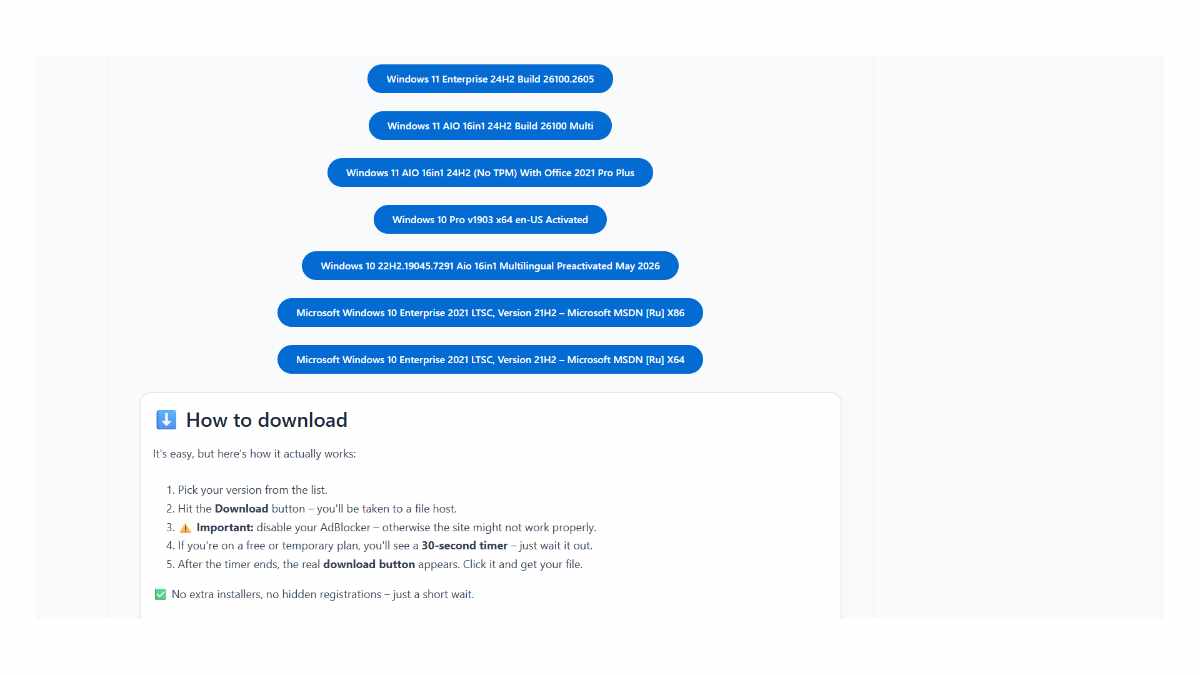
⬇️ How to download
It's easy, but here's how it actually works:
- Pick your version from the list.
- Hit the Download button – you'll be taken to a file host.
- ⚠️ Important: disable your AdBlocker – otherwise the site might not work properly.
- If you're on a free or temporary plan, you'll see a 30‑second timer – just wait it out.
- After the timer ends, the real download button appears. Click it and get your file.
✅ No extra installers, no hidden registrations – just a short wait.
🙏 And hey – if you appreciate what we're doing, consider supporting us. This site runs on ads, nothing malicious, just honest help for the community. Every click helps keep the project alive.
💬 Community & Support
We sincerely appreciate everyone who supports our website and shows interest in our work.
Your comments and interaction on the site really help our project grow and reach more 3D artists around the world 🌍.
We also have a Telegram channel — where we share updates, exclusive content, and materials that are not available on the website.
If you're looking for something specific — especially assets for Unity Engine or large 3D model packs that haven't yet been published due to their size — you can leave your request there, and if the files are available, we'll provide a direct download link.
Thank you for being part of our community and helping us keep this creative space alive ❤️
🚀 Join Our Telegram Channel
Get early access to new 3D models, exclusive Unity assets, and behind-the-scenes content.
🔗 Join Telegram💡 Your activity helps us grow — every visit, comment, and share makes a real difference.
We're truly grateful for your support and curiosity 🙏
Thanks! Yo saved my time