
All content on this website is provided solely for educational and demonstration purposes. Any software downloaded from this site is not intended for commercial use or broad distribution. You are solely responsible for ensuring compliance with all applicable license agreements and laws.
If you appreciate a particular program, we strongly encourage you to purchase the official version and support its developers. They invest significant time and effort into creating these tools and, unlike many others, cannot work for free — they need to earn a living. Consider leaving a comment, sharing, or otherwise supporting those who work hard for you.
Introduced as a flagship security feature for Windows 11, Smart App Control (SAC) is designed to block malicious, untrusted, and potentially unwanted applications (PUAs) from running on your PC.
Unlike traditional antivirus software that scans files after they are downloaded, SAC uses a combination of cloud-based AI signatures and code integrity checks. It evaluates an application before it launches. If the app doesn’t have a valid, trusted digital signature from a recognized publisher, SAC steps in and blocks it.
The goal? To create a “walled garden” that prevents ransomware, malware, and bloatware from ever touching your system files.
Why is Smart App Control Blocking My Games and Apps?
If Smart App Control is so great, why is it blocking your games? The answer comes down to digital certificates and development practices.
Here is why SAC blocks legitimate games (like Vintage Story, indie titles, mods, or game emulators):
- Lack of Code Signing Certificates: Independent game developers and open-source projects often cannot afford the expensive, recurring fees required to purchase Microsoft-approved code-signing certificates. Without this signature, SAC treats the game as untrusted.
- Packed or Obfuscated Code: Many games use anti-cheat software or pack their executables to prevent reverse engineering. SAC’s AI sees this obfuscated code, cannot verify it, and immediately flags it as a potential threat.
- Repacks and Installers: If you are using a custom launcher, a modded executable, or extracting a portable version of a game, the file structure has changed from its original, signed state. SAC will block it by default.
In short, Smart App Control doesn’t hate your game—it just can’t verify it, and its default protocol is “block first, ask questions later.”
Step-by-Step Guide: How to Disable Smart App Control for Games
If you understand the risks and want to run your unsigned games or applications, you need to disable SAC. Here is the detailed walkthrough for Windows 11 builds in 2026.
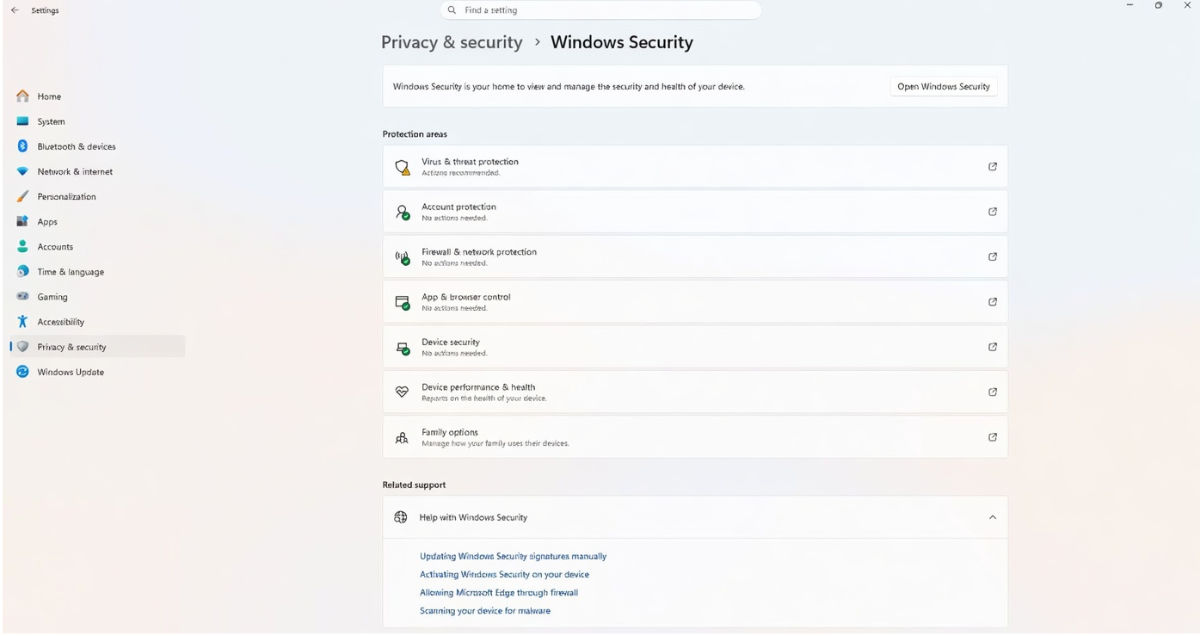
Step 1: Open Windows Security Press the Windows Key + I to open your main Settings menu. On the left-hand sidebar, click on Privacy & security.
Step 2: Access App & Browser Control Under the “Security” section, click on Windows Security. This will open the dedicated security app window. Click on App & browser control.
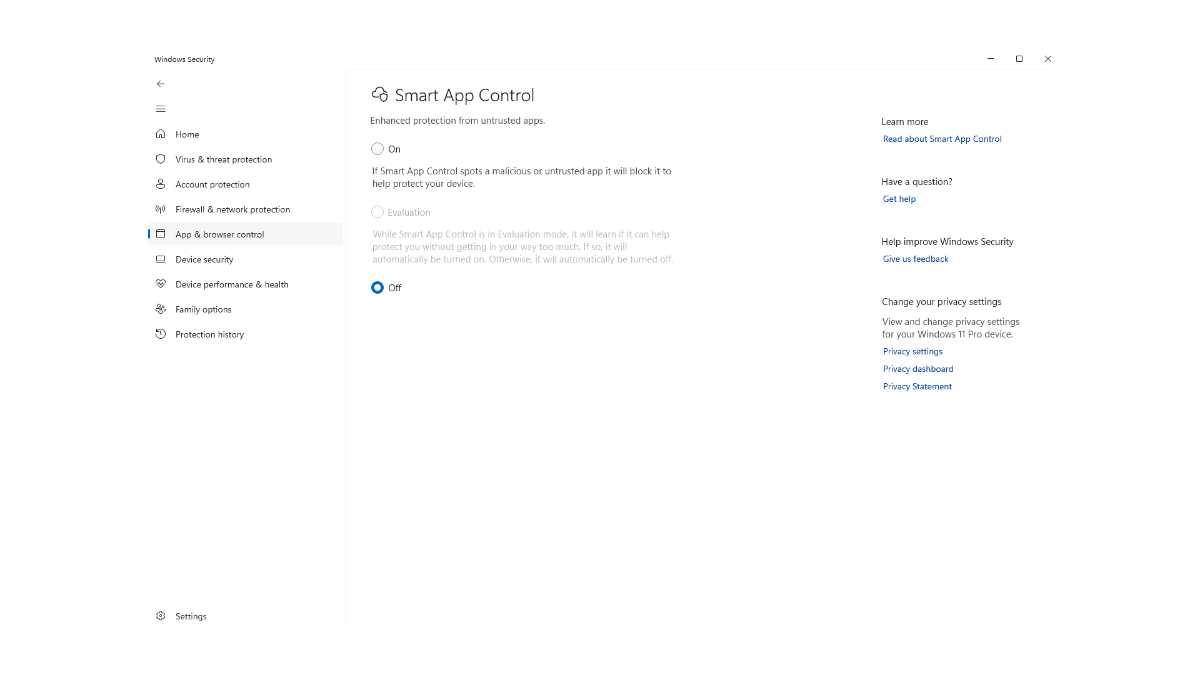
Step 3: Find Smart App Control Settings Scroll down to the bottom of the App & browser control menu. You will see a section labeled “Smart App Control.” Click on the Smart App Control settings link.
Step 4: Turn It Off You will see three options: On, Evaluation, and Off. Select the Off radio button.
Windows will display a final warning. Confirm your choice.
Immediate Result: Your previously blocked game will now launch perfectly. You can now play your game without interference!
?? The Catch: The One-Way Street (Crucial Warning)
Before you disable Smart App Control, you must understand one critical limitation implemented by Microsoft:
Disabling Smart App Control is a permanent action.
Once you select “Off,” the feature is removed from your system. You cannot simply toggle it back to “On” if you change your mind later. To re-enable SAC, you must perform a Clean Install or Reset of Windows 11.
Why does Microsoft do this? If a malicious program or hacker wanted to bypass SAC, their first step would be to turn it off. By making it a one-way street, Microsoft ensures that once a system’s defenses are lowered, they cannot be manipulated or faked by malware.
Psychological Trade-off for Gamers
You have to ask yourself: Is this specific game worth losing a major OS-level security feature?
- If you are playing a well-known indie game (like Vintage Story), turning it off is generally safe, as long as you downloaded the game from the official developer or a trusted source.
- If you are downloading random executables from file-sharing sites, disabling SAC is highly dangerous. Keep it on and find your game on a verified storefront instead.
Alternative Solutions (If You Don’t Want to Turn SAC Off)
If you want to keep Windows 11 secure but still play your game, try these workarounds:
- Whitelist via Microsoft Defender: Sometimes, adding the game’s specific
.exefolder to the “Exclusions” list in Windows Defender Antivirus will allow it to run. (This doesn’t always bypass SAC, but it helps with standard Defender blocks). - Run as Administrator: Right-click the game executable and select “Run as Administrator.” This elevates the permissions and can sometimes bypass lower-level security blocks.
- Check for Official Updates: Developers frequently update their games to include proper code signatures once they get enough funding. Check the game’s official Discord or website for a patched
.exefile.
Frequently Asked Questions (FAQ)
Is it safe to turn off Smart App Control? It is safe if you are an advanced user who only downloads verified software and games. If you frequently download files from unverified sources, leaving SAC off makes your PC more vulnerable to malware.
Why can’t I turn Smart App Control back on? Microsoft designed SAC to lock itself permanently once disabled to prevent malware from silently turning the feature off in the background. The only way to restore it is to completely reset Windows 11.
Does Smart App Control block Steam games? No. Games downloaded through verified storefronts like Steam, Epic Games, or Xbox App have valid digital signatures. SAC primarily blocks standalone indie games, mods, custom launchers, and cracked/repacked software.
Disclaimer: Disabling OS-level security features carries inherent risks. Always ensure you are downloading games from official or highly trusted sources to protect your system from malware.
⬇️ How to download
It's easy, but here's how it actually works:
- Pick your version from the list.
- Hit the Download button – you'll be taken to a file host.
- ⚠️ Important: disable your AdBlocker – otherwise the site might not work properly.
- If you're on a free or temporary plan, you'll see a 30‑second timer – just wait it out.
- After the timer ends, the real download button appears. Click it and get your file.
✅ No extra installers, no hidden registrations – just a short wait.
🙏 And hey – if you appreciate what we're doing, consider supporting us. This site runs on ads, nothing malicious, just honest help for the community. Every click helps keep the project alive.
💬 Community & Support
We sincerely appreciate everyone who supports our website and shows interest in our work.
Your comments and interaction on the site really help our project grow and reach more 3D artists around the world 🌍.
We also have a Telegram channel — where we share updates, exclusive content, and materials that are not available on the website.
If you're looking for something specific — especially assets for Unity Engine or large 3D model packs that haven't yet been published due to their size — you can leave your request there, and if the files are available, we'll provide a direct download link.
Thank you for being part of our community and helping us keep this creative space alive ❤️
🚀 Join Our Telegram Channel
Get early access to new 3D models, exclusive Unity assets, and behind-the-scenes content.
🔗 Join Telegram💡 Your activity helps us grow — every visit, comment, and share makes a real difference.
We're truly grateful for your support and curiosity 🙏